Switching to Kadence From Elementor? Here’s What You Need to Know


If you’re thinking about switching your WordPress website from Elementor to Kadence, there’s a decent chance you’ve already Googled this, read three different answers, opened your WordPress dashboard, stared at the screen for a minute and thought… Wait. If I click this, am I about to break my entire website?
Friend, I get it.
We’ve helped thousands of customers make changes to their WordPress websites, and I know how intimidating this stuff can feel, especially when you have YEARS of blog posts, photos, recipes, affiliate links, email subscribers and hard work sitting on that site.
You do not want to experiment with the digital home of your business. So before you click anything, let’s clear up the ONE thing that makes this whole process make sense.
Because here’s where most of the confusion starts: switching from Elementor to Kadence can mean very different things depending on how your current site was built. You may be changing the foundation of your website, replacing the tool that built certain pages, or doing both. And those are very different projects. Once you understand what Elementor is actually doing on your site, it becomes much easier to understand what stays, what changes, and what you’ll need to rebuild.

Understanding the Elementor Theme vs. Plugin
Before you make the switch from Elementor to Kadence, there’s one important distinction to understand: Hello Elementor and the Elementor plugin are two different things, and they do two different jobs.
Hello Elementor is a WordPress theme. It controls the foundation of your website, just like Kadence or any other WordPress theme. WordPress can only have one active theme at a time.
Elementor is a page-builder plugin. This is the tool that is typically doing the heavy lifting when it comes to the actual design and layout of your pages — your homepage, About page, landing pages, sales pages, and so on.
You can use Hello Elementor and the Elementor plugin together, but you don’t have to. Someone could be using an entirely different WordPress theme while still using Elementor to build their individual pages.
That distinction matters when you’re moving from Elementor to Kadence because changing your theme and removing your page builder are two separate things.
How Do I Know What I’m Actually Using?
Let’s figure that out before we touch anything.
- Go to Appearance → Themes. If Hello Elementor is your active theme, that’s the theme currently providing the foundation for your site.
- Go to Plugins → Installed Plugins. If Elementor or Elementor Pro is active, Elementor is being used as a page builder somewhere on your site.
You may be using Hello Elementor and Elementor together, or you may have another theme paired with the Elementor plugin. Knowing what’s currently active will help you understand exactly what needs to change.
So What Happens When I Install Kadence?
Honestly, the Elementor to Kadence theme swap itself is simpler than you’d think:
- If Elementor is your theme, activating Kadence replaces it. WordPress only allows one active theme at a time.
- If you’re also using the Elementor plugin, activating Kadence does not automatically remove it.
And for now — that’s exactly what we want. Two separate things, two separate jobs.
But Will My Website Break?
This is the real question for anyone going from Elementor to Kadence. The answer depends on how your individual pages were built.
If you used Elementor’s page builder plugin to create certain pages, those pages still need Elementor to display correctly. Deactivate the plugin too soon, and things may not look the way they used to.
That doesn’t mean switching is impossible. It just means being smart about the order you do things in.
The Safe Way to Switch From Elementor to Kadence
If you’re making a full Elementor to Kadence switch, I recommend doing the transition on a staging copy of your website rather than rebuilding everything directly on your live site.
1. Back up your website.
Before changing themes, plugins, or page layouts, take a complete backup of your existing website. You want a safe restore point before you begin.
2. Push your website to staging.
Create a staging copy of your current site through your hosting provider. This gives you a private copy of your website where you can make the transition without affecting what visitors see on your live site. (Never set one up before? Here’s our step-by-step guide to creating a WordPress staging site.)
And there’s another big advantage: your live site becomes your visual reference while you rebuild.
3. Install Kadence and activate your Kadence child theme on staging.
On the staging site, install the free Kadence theme and activate the child theme you’ll be using for your new design.
Your live website remains untouched and available for visitors while you work.
4. Disable Elementor on the staging site.
Once Kadence is active, disable the Elementor and Elementor Pro plugins on staging.
This is intentional.
Any pages that relied on Elementor may now look broken or lose their original layouts — and that actually helps you identify exactly which pages were dependent on Elementor and need to be rebuilt.
You’re not breaking your live website. You’re revealing what needs attention on your staging copy.
5. Rebuild your Elementor pages with Kadence Blocks.
Now work through those affected pages one at a time using Kadence Blocks.
Keep your live website open in another tab so you can reference the existing page structure, content, and layout as you rebuild each page in Kadence.
You don’t necessarily have to recreate every page pixel-for-pixel. This is also a great opportunity to clean things up, simplify layouts, and make improvements while you’re already rebuilding.
6. Test everything before going live.
Once your pages have been rebuilt, go through the site carefully.
Check your desktop and mobile layouts, navigation, links, forms, buttons, opt-ins, and any other important functionality.
Once you’re confident the staging version is working properly and nothing still depends on Elementor, you can move your newly rebuilt site live.
Why I Love Kadence for This
When I moved Restored 316 from Genesis to Kadence years ago, it was because I wanted our customers to have beautiful websites without needing to become web developers to maintain them.
Beautiful isn’t enough. Your website needs to work for the business you have today — something you can update and understand without every little change feeling like a support ticket or a prayer.
That’s why our Restored 316 Kadence themes are built to be customizable, no-code-required, no separate page-builder plugin required, and backed by real documentation and real human help.
Buying a beautiful theme is the easy part. Knowing what to do next is what matters.
The Big Takeaway on Moving From Elementor to Kadence
Moving from Elementor to Kadence doesn’t have to mean tearing apart your live website and hoping for the best.
The safest approach is to give yourself a separate place to work, keep your existing live site intact as your reference, and rebuild one piece at a time.
One important thing to know: when you disable Elementor on your staging site, pages that were built with Elementor may no longer display their content properly. You may see broken layouts, leftover code or shortcodes, or content that is difficult to work with.
That’s exactly why we recommend doing your Elementor to Kadence rebuild on staging.
Your live website is still there, with those pages displaying exactly as they did before. You can open the live version of each page, reference the copy, images, links, and overall layout, and then rebuild that page cleanly with Kadence Blocks on staging.
It may take some rebuilding, especially if Elementor was used heavily throughout your site, but you’re able to do that work behind the scenes while your existing website continues running normally.
You Won’t Be Left to Figure It Out Alone
Switching from Elementor to Kadence can feel like a big project, especially when you’re also learning a new way to build and customize your website. That’s why every Restored 316 theme includes access to our library of 300+ step-by-step tutorials designed to help you through the process.
From installing your theme and recreating the demo you fell in love with to changing colors, fonts, layouts, menus, and all those little WordPress settings that aren’t always obvious — we’ve documented it.
And if you run into something you can’t figure out from a tutorial, you’re not left searching the internet for an answer. There are real humans here to help you, too.
Feminine WordPress Themes
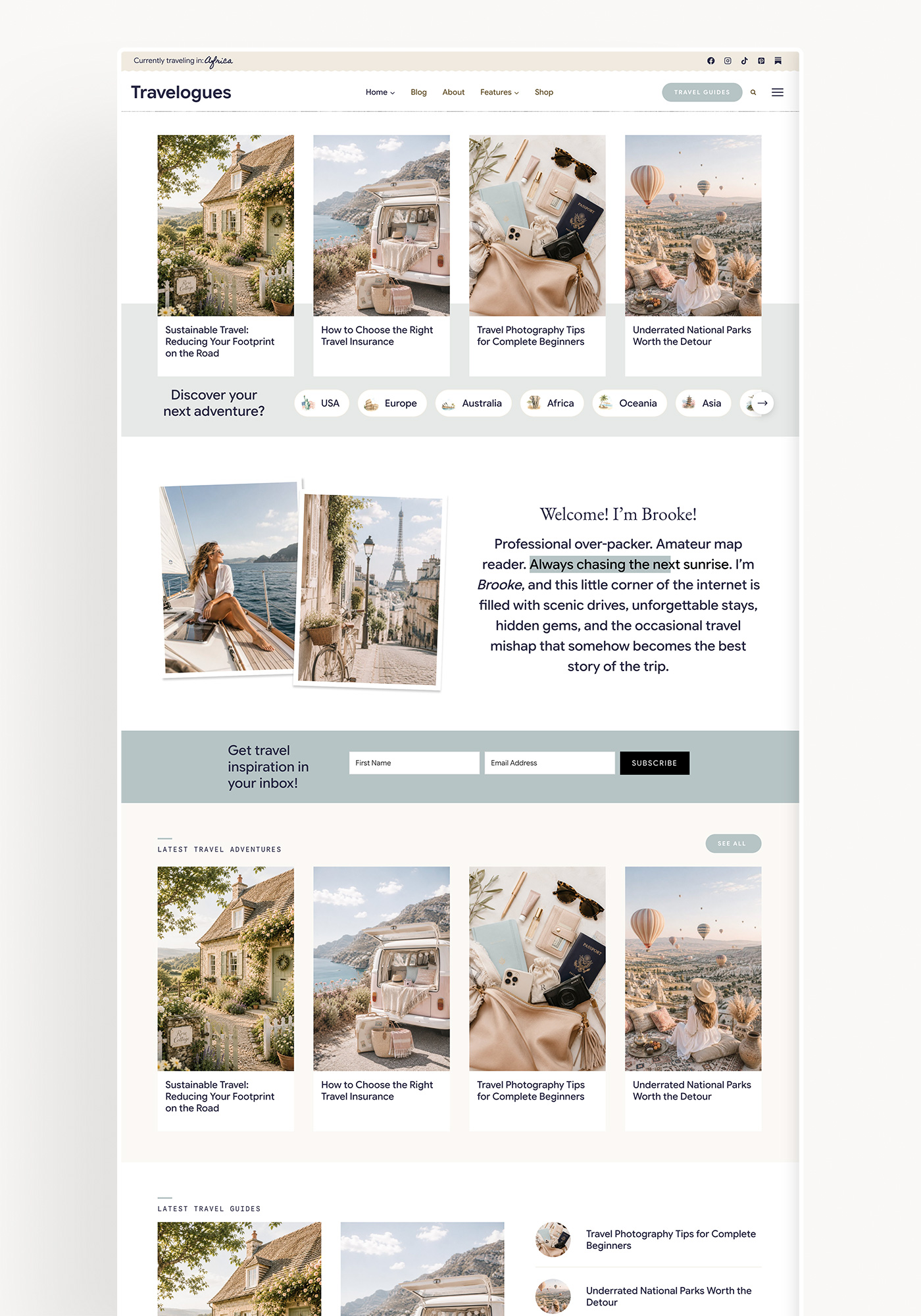
Travelogues
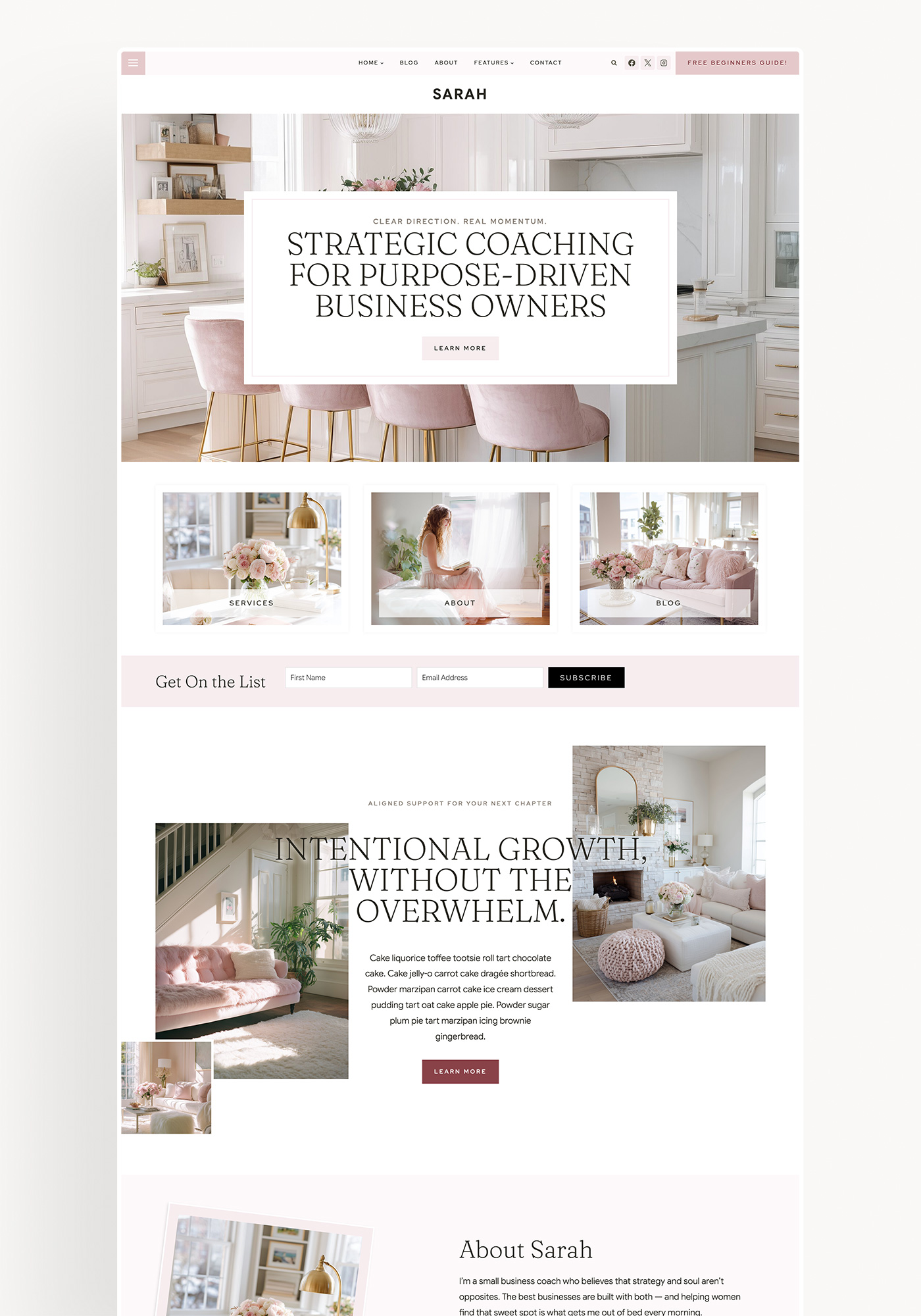
Sarah

Harper
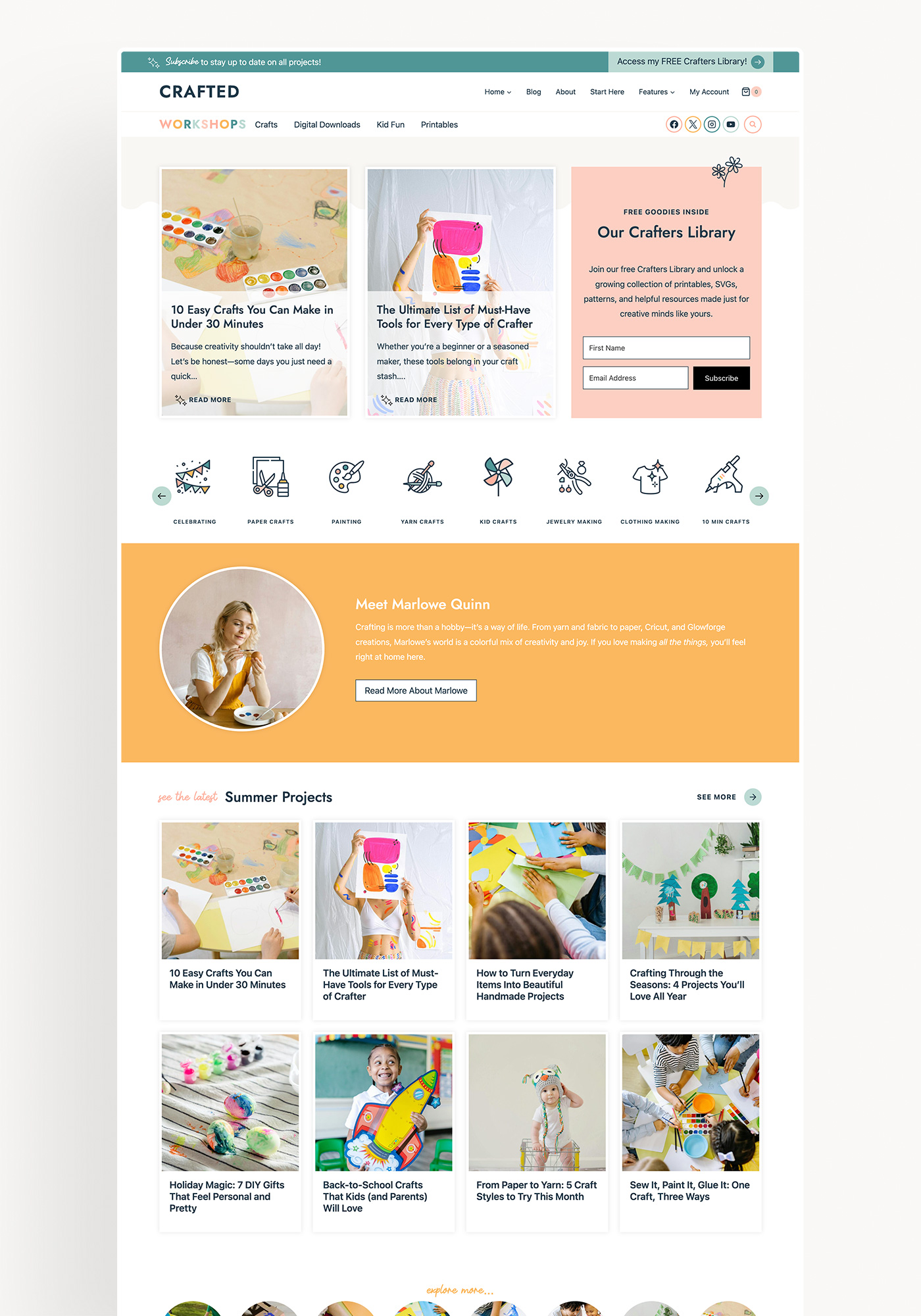
Crafted

Homestead
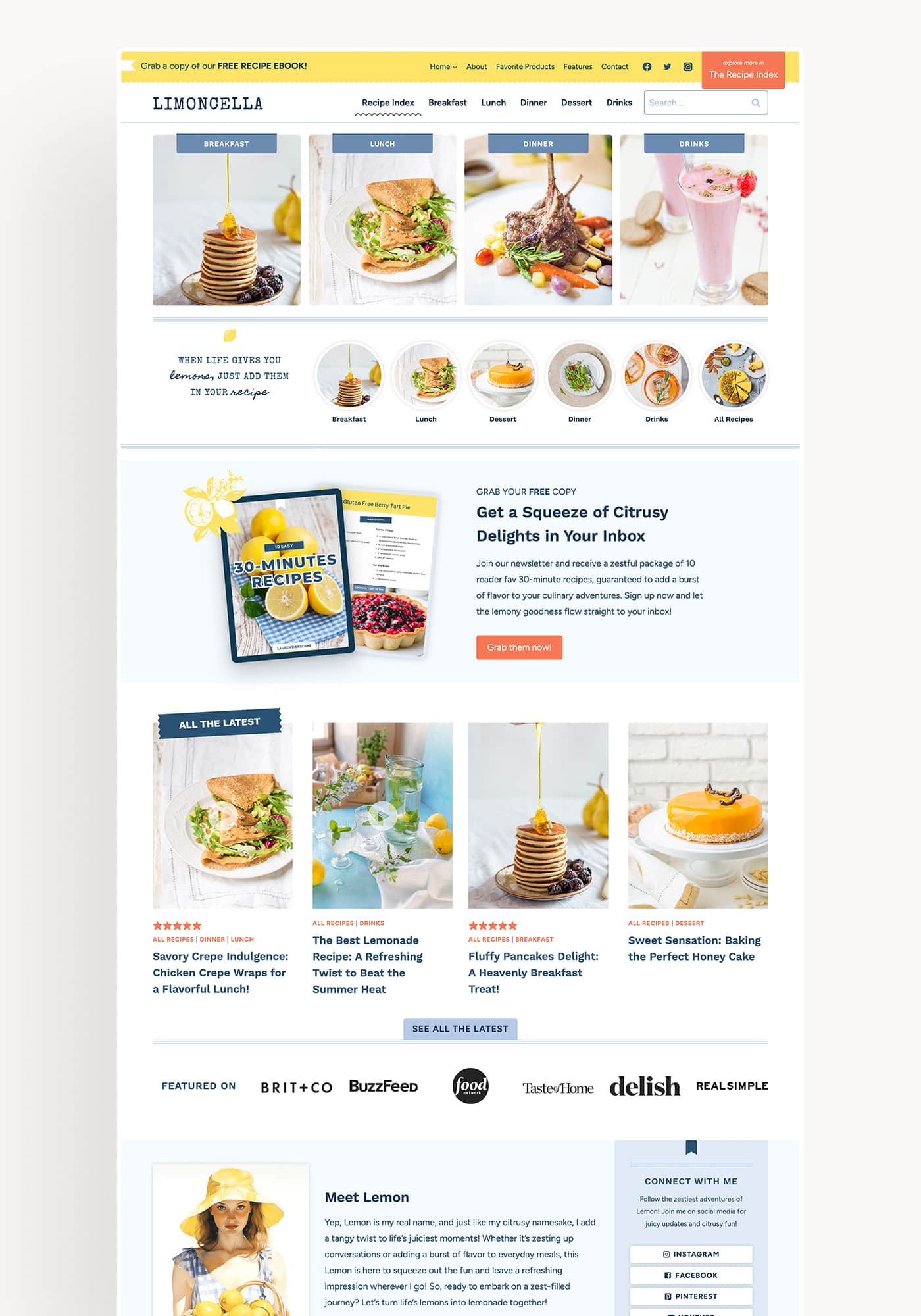
Limoncella
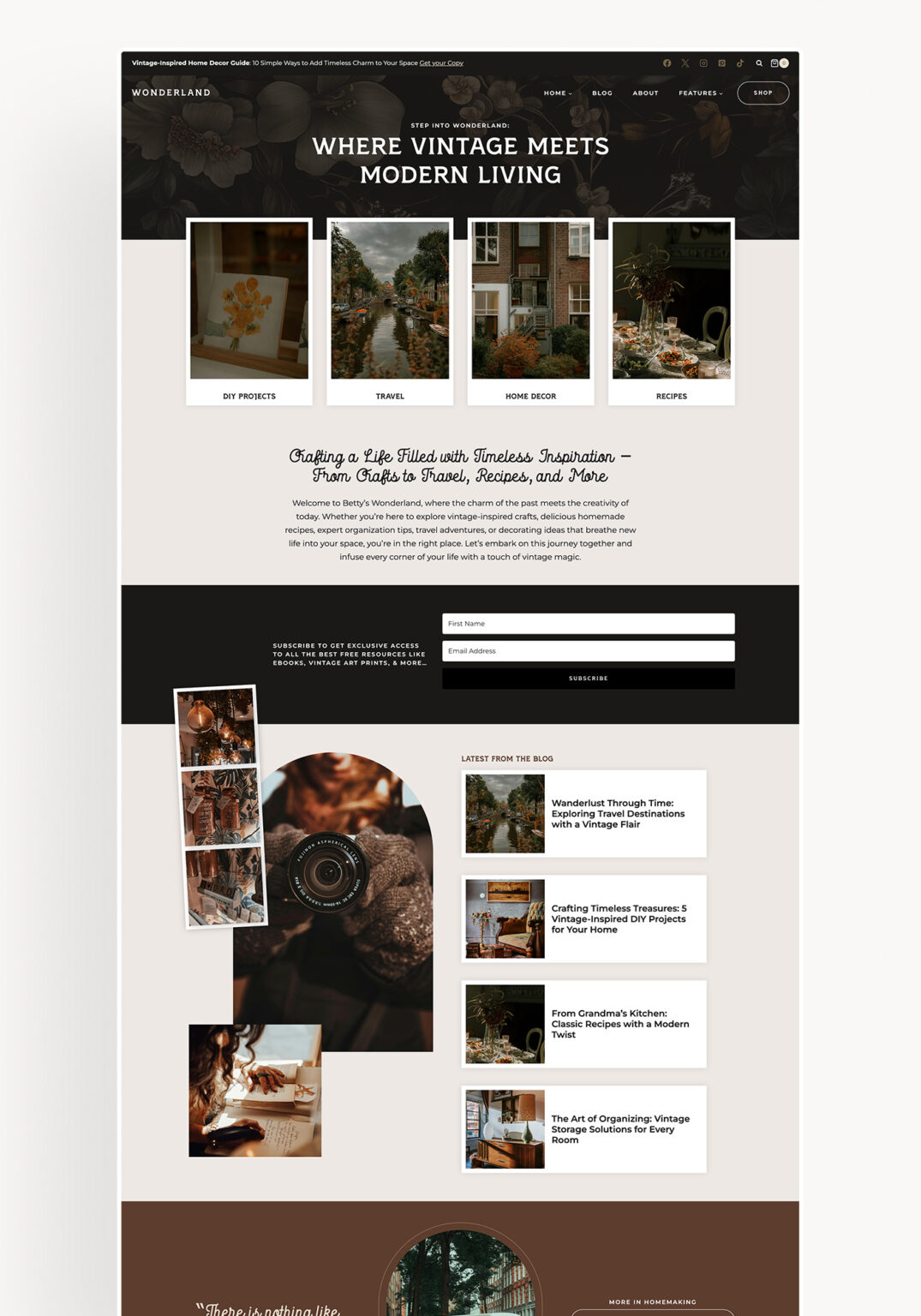
Wonderland
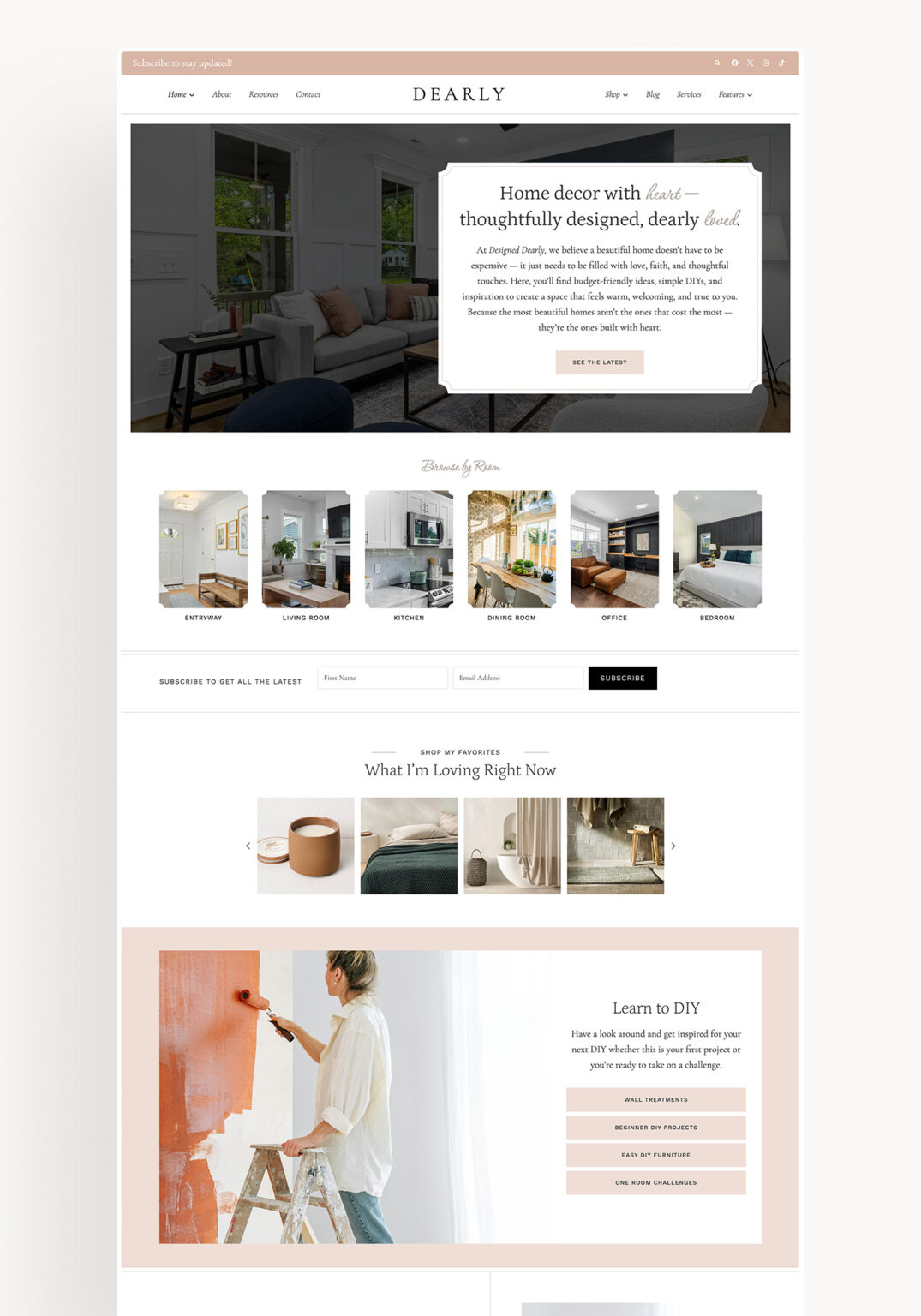
Dearly
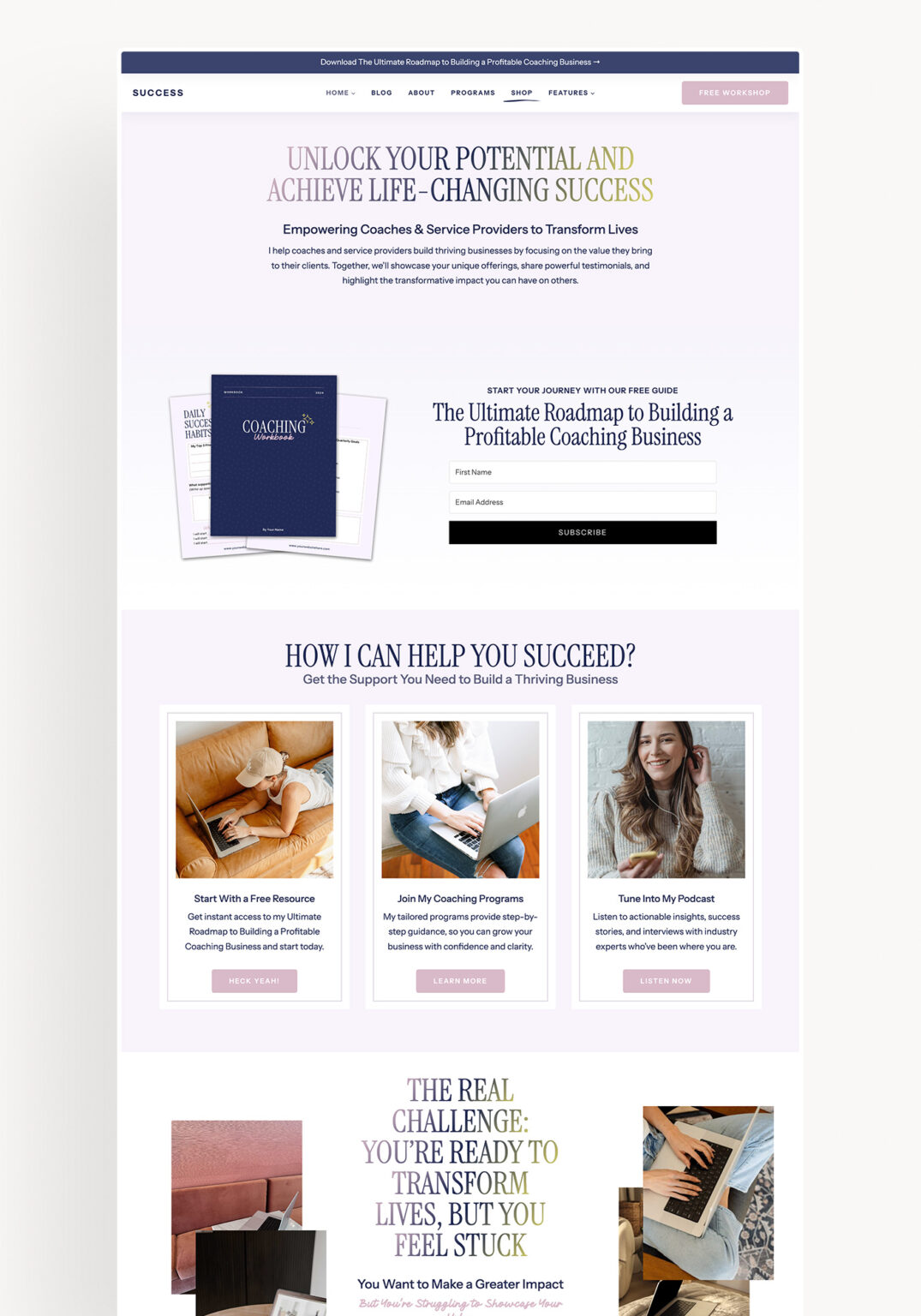
Success
Ready to make your Elementor to Kadence move with a theme that’s built to be easy? Browse our Kadence child themes, pick the one that feels like you, and get 300+ tutorials plus real human help along for the ride. → Find your Restored 316 Kadence theme